
Model Context Protocol (MCP) is an open standard that lets AI assistants like Claude securely connect to external tools, apps, and data — so the AI can do things in those services, not just talk about them. Think of it as a universal adapter (often called "the USB-C of AI") between an AI model and the software you already use.
One of the most useful niches is a fashion design MCP — an MCP server that gives Claude real fashion-design tools. This guide explains what MCP is in plain English, then walks you through adding a fashion design MCP connector to Claude.ai step by step, using the StyTrix AI fashion design connector as a live example. By the end you'll be able to ask Claude to generate fashion concepts, models, and fabrics and place them straight onto your design canvas — and you'll know how to write prompts that actually work.
What is MCP (Model Context Protocol)?
MCP is an open protocol, introduced by Anthropic and now adopted across the industry, that standardizes how AI applications connect to external systems. Before MCP, every AI integration was custom-built. With MCP, any compatible client (Claude.ai, Claude Code, Cursor, OpenAI Codex, Google Gemini CLI, and more) can talk to any MCP server through the same interface.
An MCP server exposes tools — discrete actions the AI can call, like "create a project", "generate an image", or "check my balance". When you connect a server to Claude, those tools become available in your chat. The AI decides when to call them based on your request, and (for actions that change data) asks for your approval first.
There are two kinds of MCP servers:
- Remote (hosted) servers — a URL you connect to, with sign-in handled by OAuth. Nothing to install. StyTrix is a remote server.
- Local servers — run on your own machine (usually for developer tools and file access).
This tutorial covers connecting a remote server, which is the simplest path for most people.
Why MCP matters
- Your AI gets hands, not just a mouth. Instead of describing how to do something, Claude can do it directly in the connected app.
- One standard, many apps. Connect once; the same server works across Claude, Cursor, Codex, and Gemini.
- You stay in control. Connections use OAuth sign-in, and write actions require your approval. You can disconnect anytime.
What you can do with the StyTrix MCP connector
StyTrix is an AI fashion design platform. Its MCP connector gives Claude 19 tools — 5 read-only (free) and 14 generation tools that place results live on your design canvas:
- Read-only (free): check your account, list projects, check your credit balance, poll video/training status.
- Generation (uses credits): create a project, generate a fashion concept, generate a model, generate a fabric swatch, mix & match a look, upscale, remove background, image-to-sketch, multi-angle views, split layers, generate a runway video, and train a custom style.
Here's a concept generated by asking Claude — an oversized beige wool coat, placed live on a StyTrix canvas:

How to add a custom MCP connector to Claude.ai (step by step)
You'll need a free Claude.ai account and, for this example, a free StyTrix account. The whole process takes about two minutes.
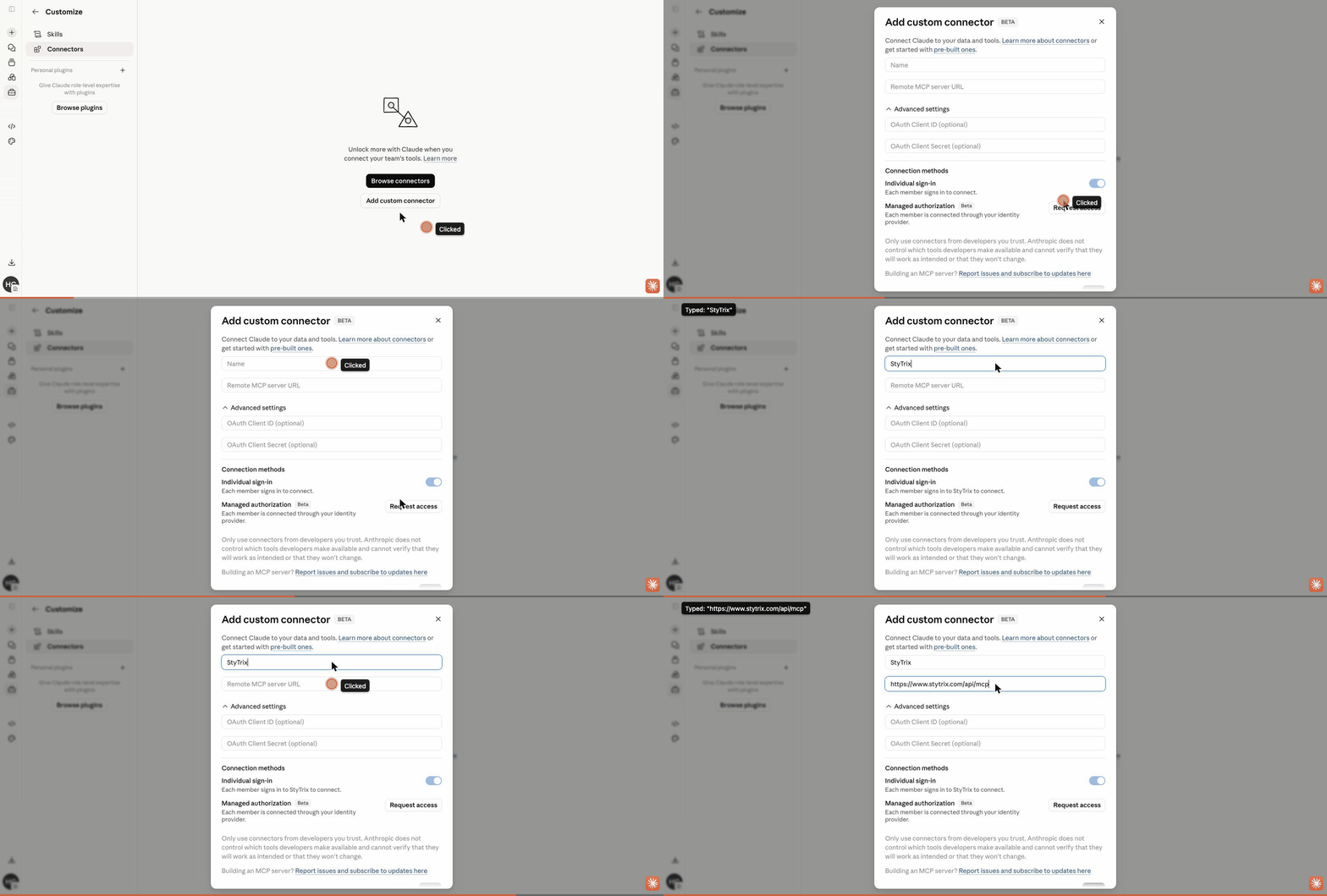
Step 1 — Open Connectors
Go to claude.ai/customize/connectors (or click your profile → Settings → Connectors). You'll see your current connectors and a + button to add a new one.
Step 2 — Choose "Add custom connector"
Click the + in the Connectors panel and select Add custom connector.
Step 3 — Enter the name and server URL
In the dialog, fill in two fields:
- Name:
StyTrix - Remote MCP server URL:
https://www.stytrix.com/api/mcp
Leave the OAuth Client ID / Secret fields blank — StyTrix supports automatic registration, so no keys are needed. Then click Add.
Tip: This is exactly how you add any remote MCP server — just swap in that provider's URL.
Step 4 — Connect and sign in
Click Connect. A StyTrix sign-in page opens (OAuth 2.1). Sign in with your StyTrix account and approve access. You never paste an API key, and you can revoke access at any time.
Step 5 — Review tool permissions
Claude shows the connector's tools, grouped into Read-only tools and Write tools, each set to Needs approval by default. This means Claude will ask before running anything that spends credits or changes your canvas — a good default to keep.
Step 6 — Use it in a chat
Open a new chat and ask Claude to use StyTrix. When it calls a write tool, you'll get an approval prompt — click Allow once (or Always allow) and the result appears live on your canvas.
That's it — the connector is live. The same steps work for adding any MCP server you trust.
See it in action: one sentence → a finished design
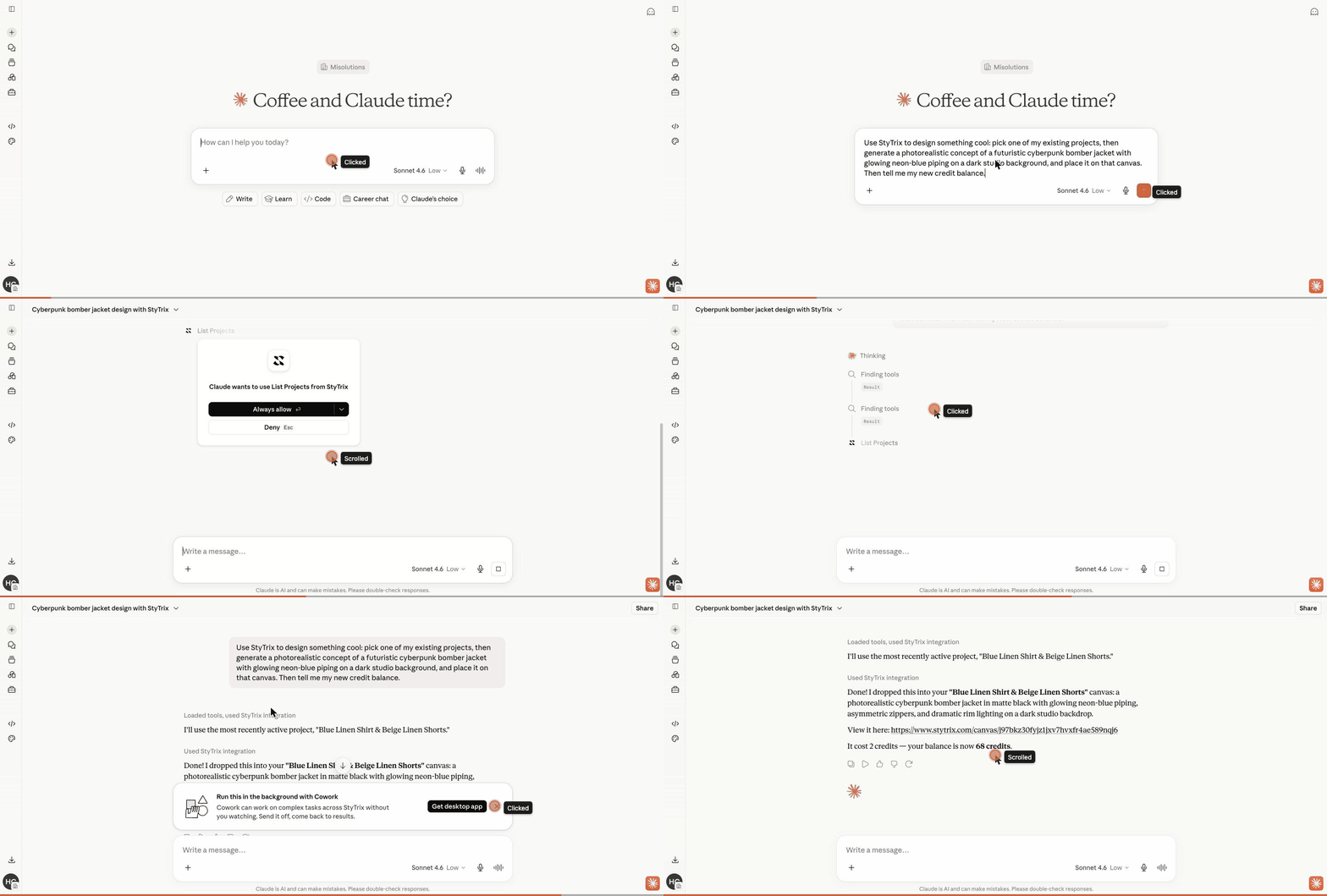
Here's a real run. With StyTrix connected, I gave Claude a single instruction:
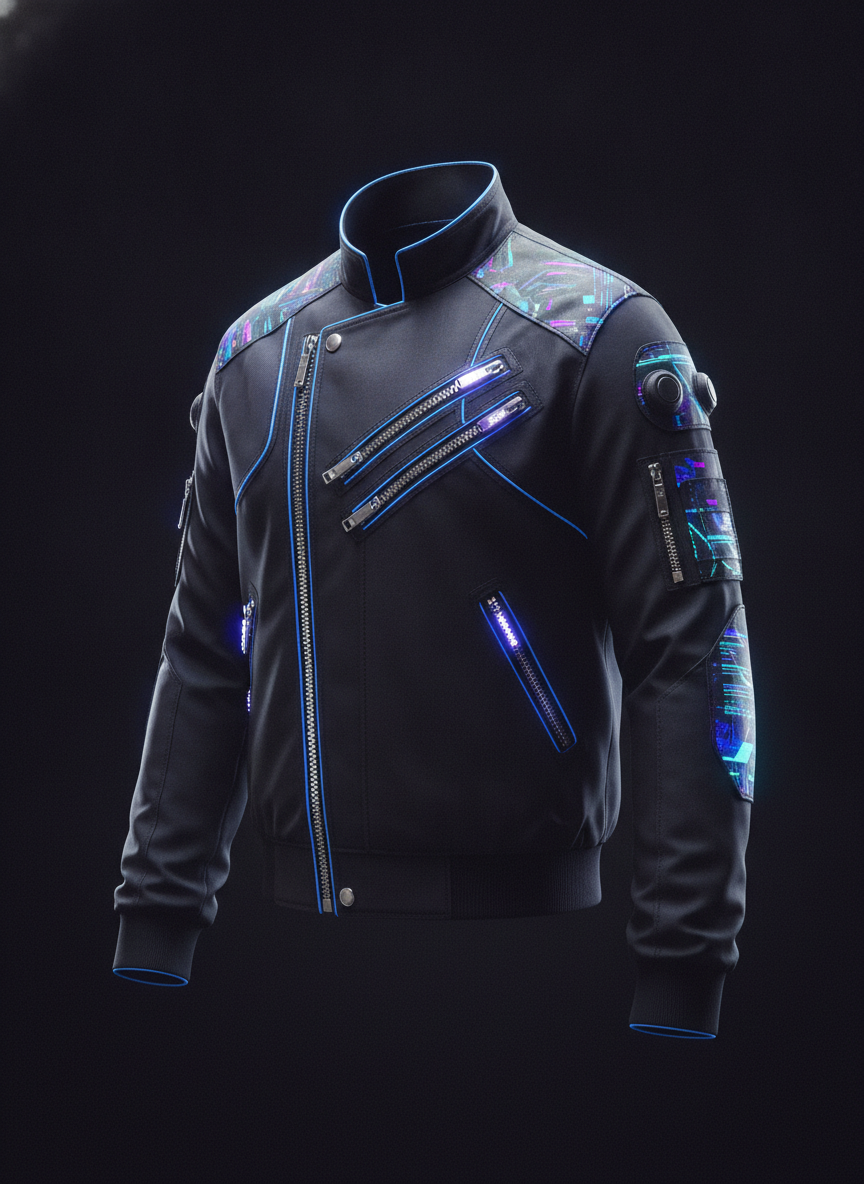
"Use StyTrix to design something cool: pick one of my existing projects, then generate a photorealistic concept of a futuristic cyberpunk bomber jacket with glowing neon-blue piping on a dark studio background, and place it on that canvas. Then tell me my new credit balance."
Claude found the StyTrix tools, asked permission to use them, chose a project, generated the design, placed it live on the canvas, and reported back: "It cost 2 credits — your balance is now 68 credits." No app-switching, no manual export — just a conversation.
And here's the concept it produced from that one sentence:
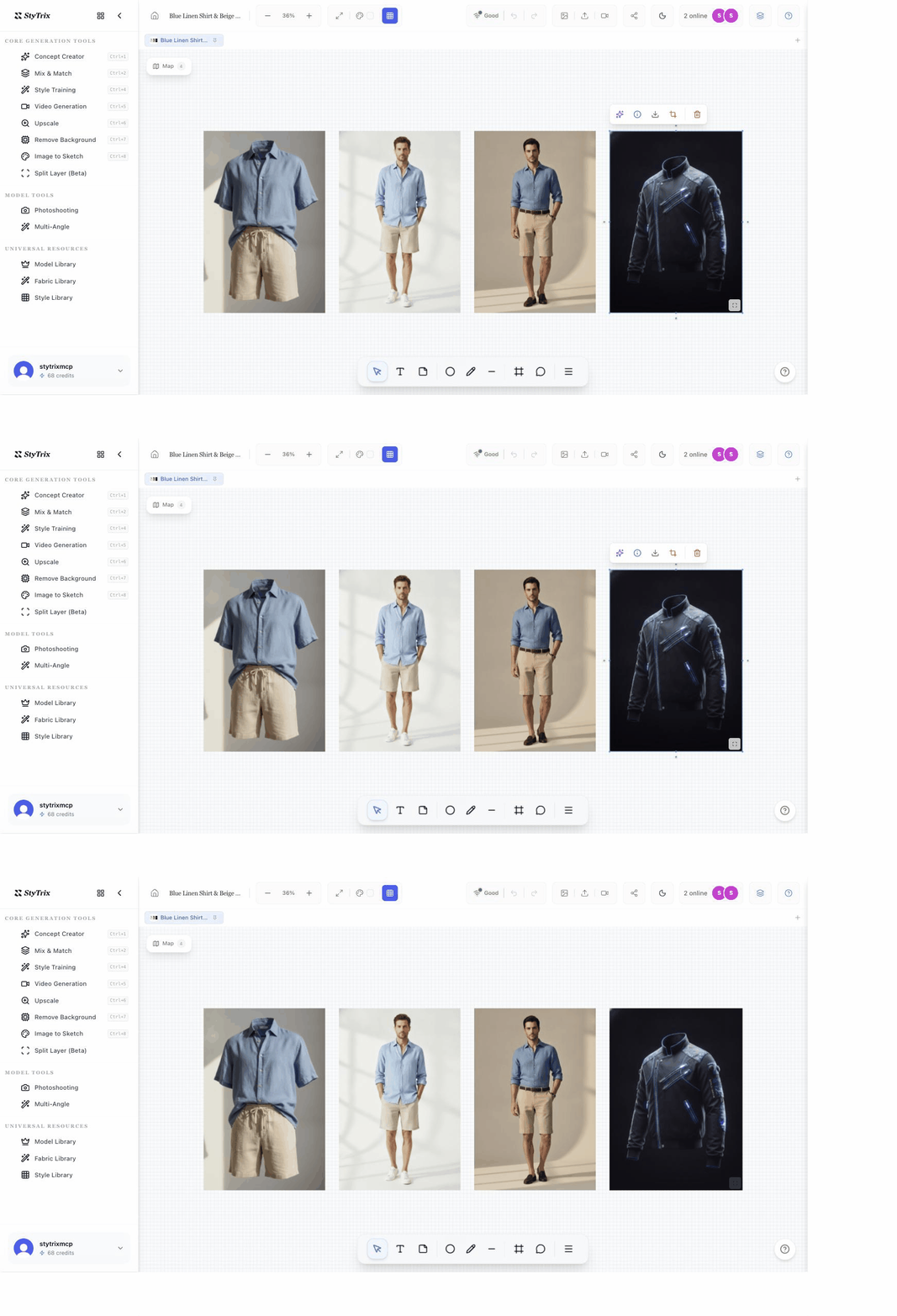
And here it is on the StyTrix canvas, sitting next to the other looks in the project — a real, editable design object (select it to upscale, remove background, or generate variations), not just a chat reply:
How to write good MCP prompts
MCP tools work best when your prompt is specific and names what you want done. A reliable pattern:
[Use the connector] + [the action] + [where/with what] + [any follow-up steps]
Tips:
- Name the connector so Claude reaches for the right tools: "Use StyTrix to…"
- Be specific about the output — garment type, style, colors, aspect ratio.
- Say where it should go — create a project or name the canvas, so generated images land in the right place.
- Chain steps — Claude can create a project, then generate, then place, in one request.
- Start read-only to test — list projects and check credits first (free) before spending credits.
Example prompts to copy
- "Use StyTrix: call whoami, list my projects, and tell me my credit balance." (free, great first test)
- "Create a new StyTrix project called 'SS26 Outerwear', then generate a photorealistic concept of an oversized beige wool coat on a clean white studio background and place it on the canvas."
- "Generate a fashion model (female, full body, studio lighting) and three coordinated fabric swatches for a linen summer line, and add them to my canvas."
- "Take this garment photo [URL] and create front, back, and side views."
- "Turn this jacket photo into a clean black-and-white technical flat sketch."
Works with more than Claude.ai
Because MCP is an open standard, the same StyTrix server works across tools:
- Claude Code:
claude mcp add --transport http stytrix https://www.stytrix.com/api/mcp - Cursor: add
{ "mcpServers": { "stytrix": { "url": "https://www.stytrix.com/api/mcp" } } }to.cursor/mcp.json - OpenAI Codex and Gemini CLI: add the same URL to their MCP config.
Full setup details are in the StyTrix MCP documentation.
Is MCP safe?
Yes, with normal caution. Connections use OAuth sign-in (no API keys to copy), write actions require your approval, and you can disconnect a connector at any time from the Connectors page. As Anthropic notes in the dialog, only add connectors from developers you trust — the same advice that applies to any app integration.
Frequently asked questions
What does MCP stand for? MCP stands for Model Context Protocol, an open standard for connecting AI assistants to external tools and data.
Is MCP free to use? The protocol and connecting a server are free. Individual servers may charge for certain actions — for example, StyTrix's read-only tools are free, while generation tools use StyTrix credits.
Do I need to know how to code to use MCP? No. Adding a remote connector in Claude.ai is a no-code, two-minute process — paste a URL and sign in.
Which AI apps support MCP? Claude.ai, Claude Code, Cursor, OpenAI Codex, Google Gemini CLI, and a growing list of others all support MCP servers.
Where do I add an MCP connector in Claude? Go to claude.ai/customize/connectors, click + → Add custom connector, paste the server URL, and connect.
Can I remove a connector later? Yes. Open the Connectors page, select the connector, and click Disconnect.
Start designing with AI
MCP turns Claude from a chat partner into a hands-on design assistant. Connect StyTrix once and you can brief Claude like a studio assistant — "generate three coat concepts and a matching fabric" — and watch the results appear on your canvas.
Create a free StyTrix account and read the MCP setup docs to get started.


