
Finding the right model for your fashion brand can be expensive and time-consuming. Between agency fees, booking schedules, and travel costs, a single photoshoot can eat into your budget fast. With StyTrix's Model Library, you can generate photorealistic AI models with fully customizable attributes — and it takes less than 30 seconds.
In this tutorial, we'll walk through how to create a custom AI model from scratch using the Model Library's attribute system.
What You'll Need
- A StyTrix account (free tier works)
- A clear idea of the model look you want (or just experiment!)
Step 1: Create a New Project
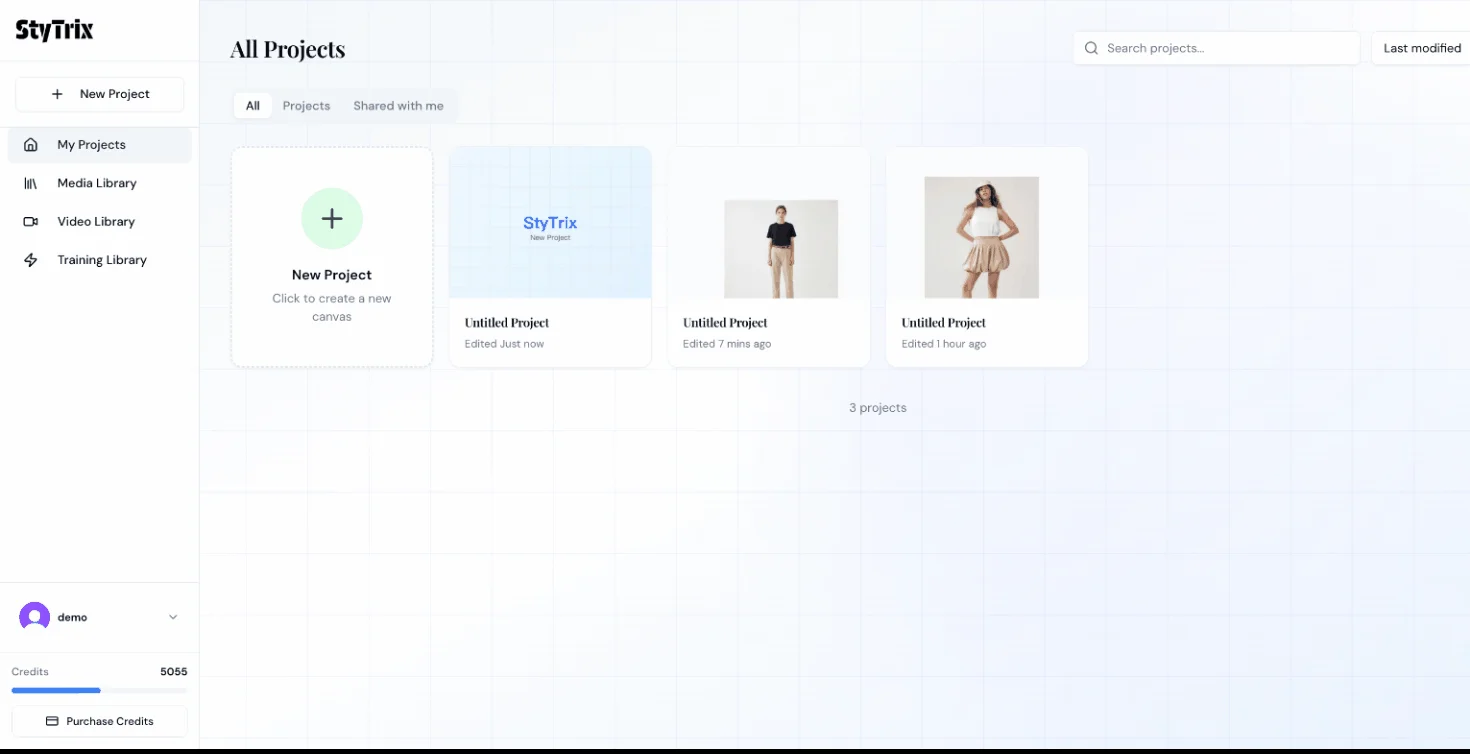
From the Dashboard, click the New Project card to create a fresh canvas.
Step 2: Open Model Library
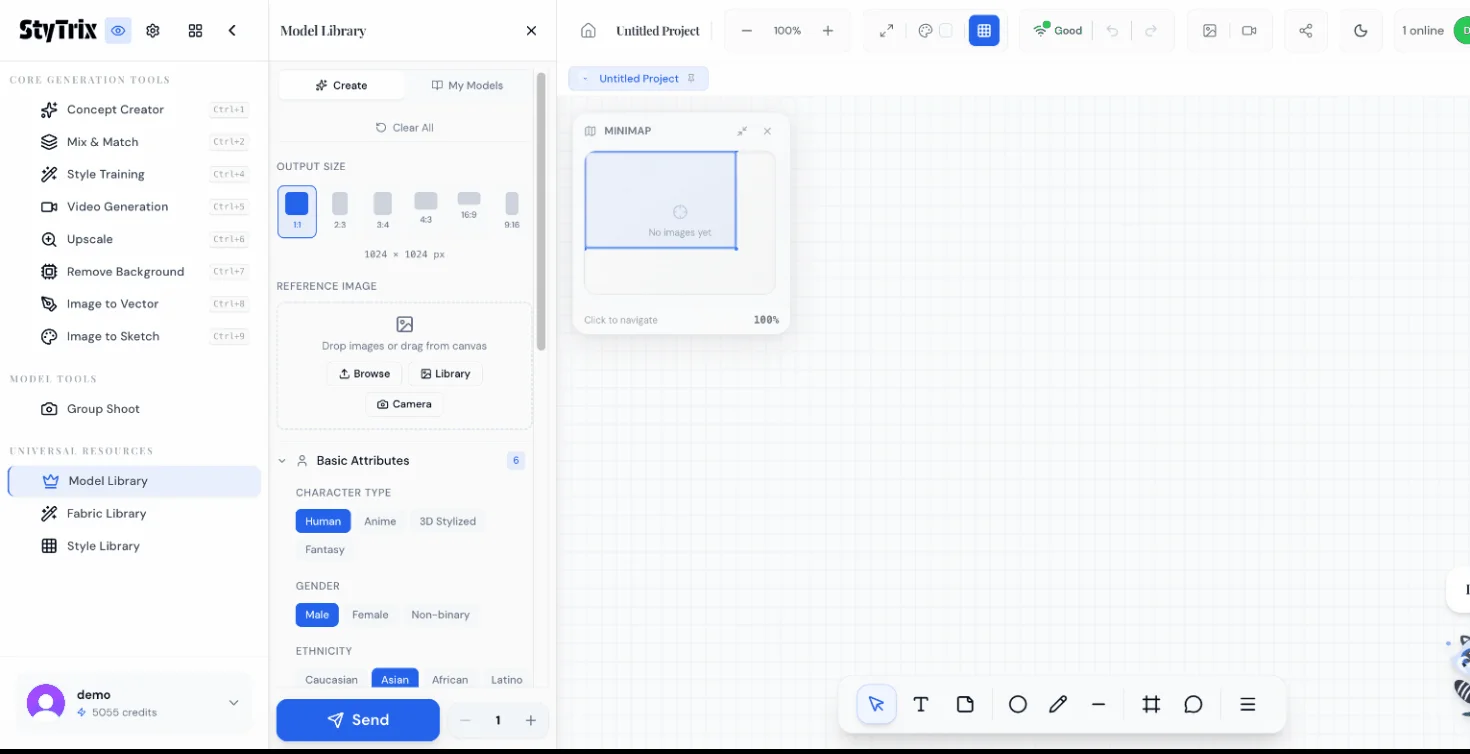
In the left sidebar under Universal Resources, click Model Library. This opens the model creation panel with two tabs:
- Create — Build a new model from scratch using attribute controls
- My Models — Access previously generated models for reuse
You'll also see the Output Size options (1:1, 2:3, 3:4, 4:3, 16:9, 9:16) and a Reference Image upload area if you want to base your model on an existing photo.
Step 3: Set Basic Attributes
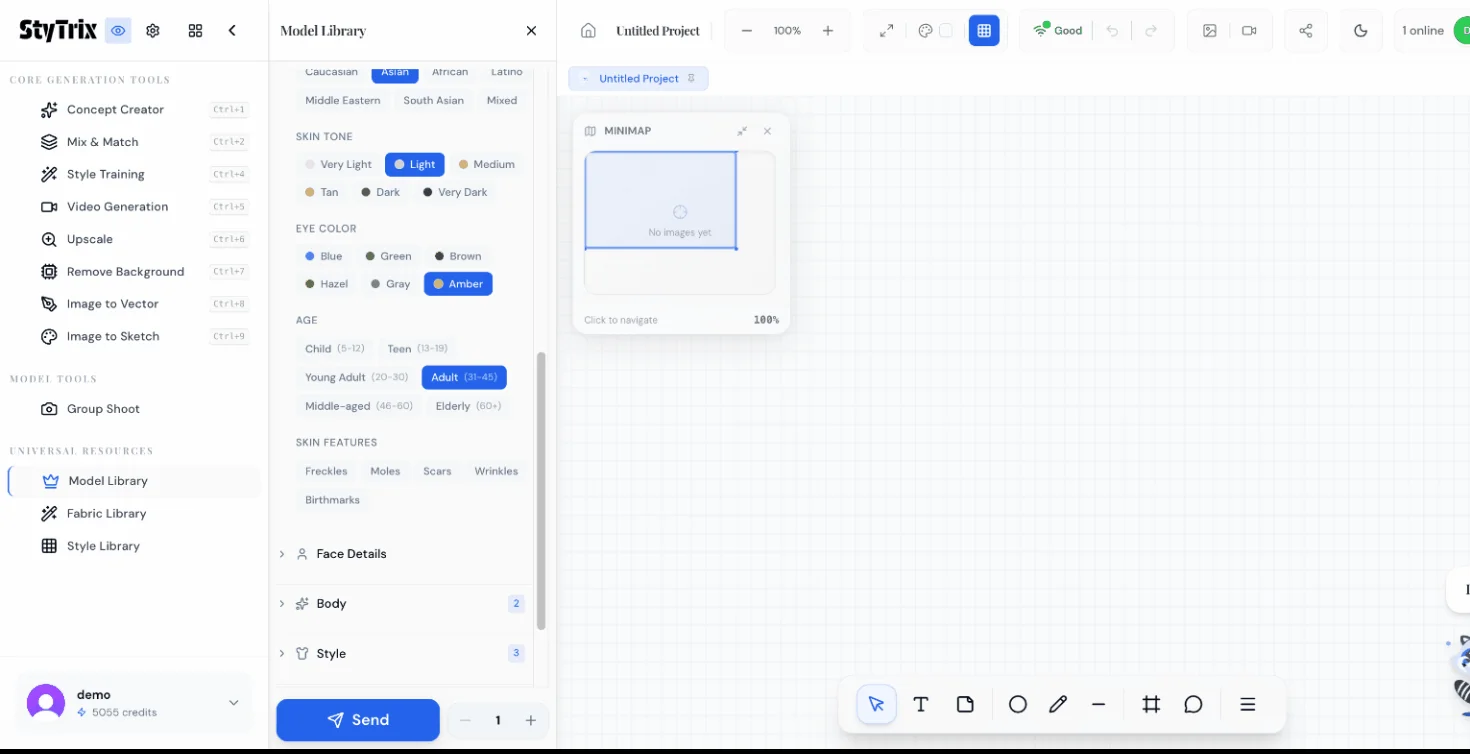
The Basic Attributes section lets you define the fundamental characteristics of your model:
- Character Type — Human, Anime, 3D Stylized, or Fantasy
- Gender — Male, Female, or Non-binary
- Ethnicity — Caucasian, Asian, African, Latino, Middle Eastern, South Asian, Mixed
- Skin Tone — Very Light to Very Dark (7 options)
- Eye Color — Blue, Green, Brown, Hazel, Gray, Amber
- Age — Child (5–12), Teen (13–19), Young Adult (20–30), Adult (31–45), Middle-aged (46–60), Elderly (60+)
- Skin Features — Freckles, Moles, Scars, Wrinkles, Birthmarks
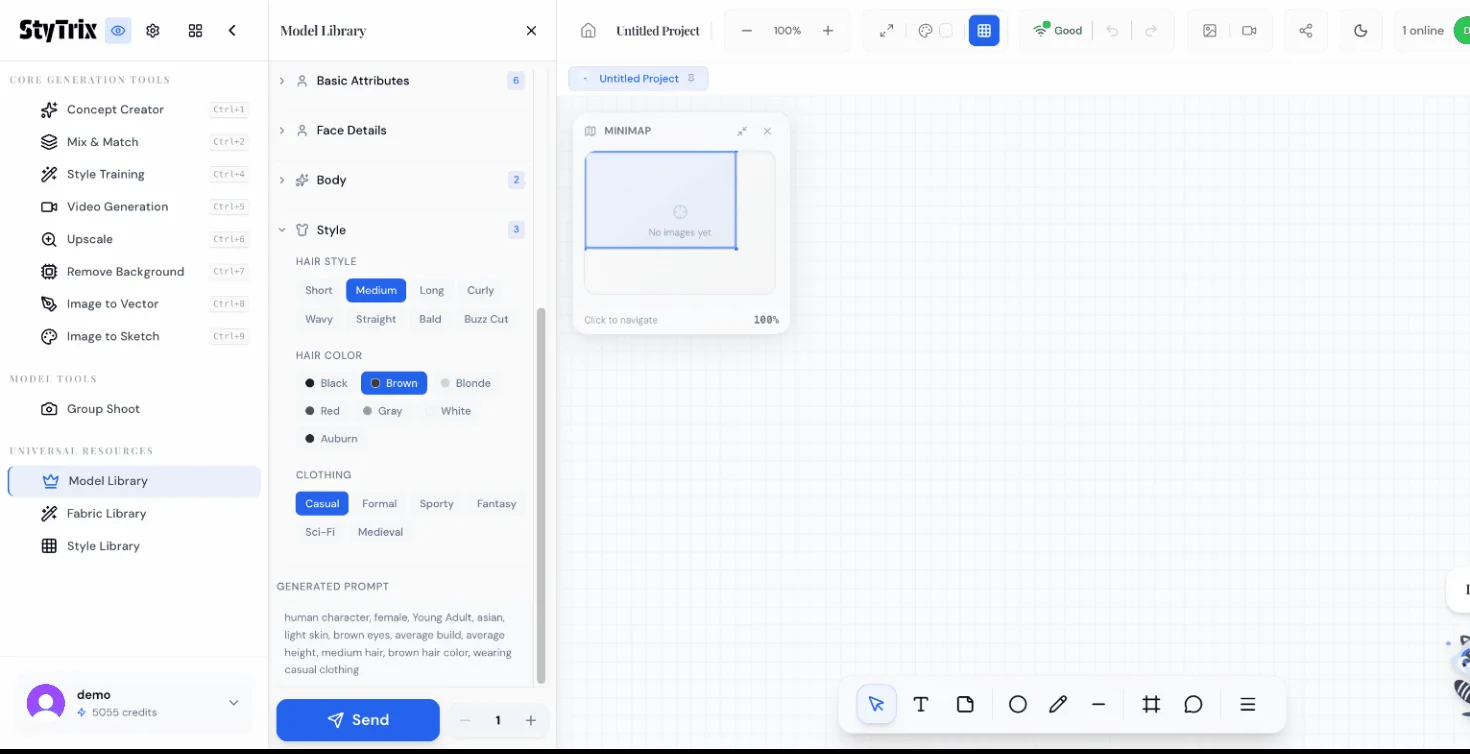
For this tutorial, we selected: Human, Female, Asian, Light skin, Brown eyes, Young Adult (20–30).
Step 4: Customize Style
Scroll down to the Style section to define your model's appearance:
- Hair Style — Short, Medium, Long, Curly, Wavy, Straight, Bald, Buzz Cut
- Hair Color — Black, Brown, Blonde, Red, Gray, White, Auburn
- Clothing — Casual, Formal, Sporty, Fantasy, Sci-Fi, Medieval
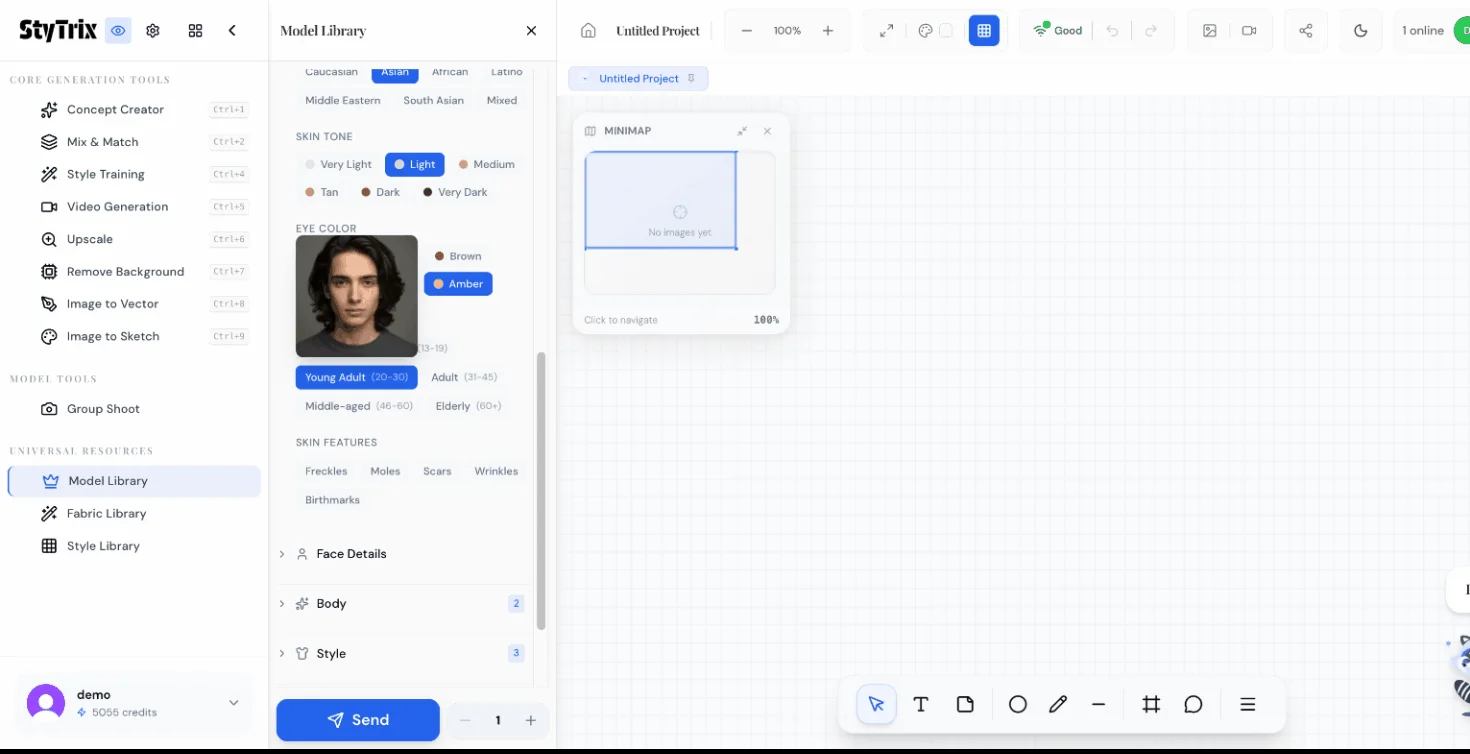
As you select attributes, a live preview appears showing a face that matches your selections. This gives you instant feedback before generating the full model.
We chose: Long hair, Black hair color, Casual clothing.
Step 5: Review the Generated Prompt
At the bottom of the panel, you'll see a Generated Prompt that summarizes all your selections in natural language:
human character, female, Young Adult, asian, light skin, brown eyes, average build, average height, long hair, black hair color, wearing casual clothing
This prompt is automatically built from your attribute selections. You can also edit it manually for fine-tuning.
Step 6: Generate
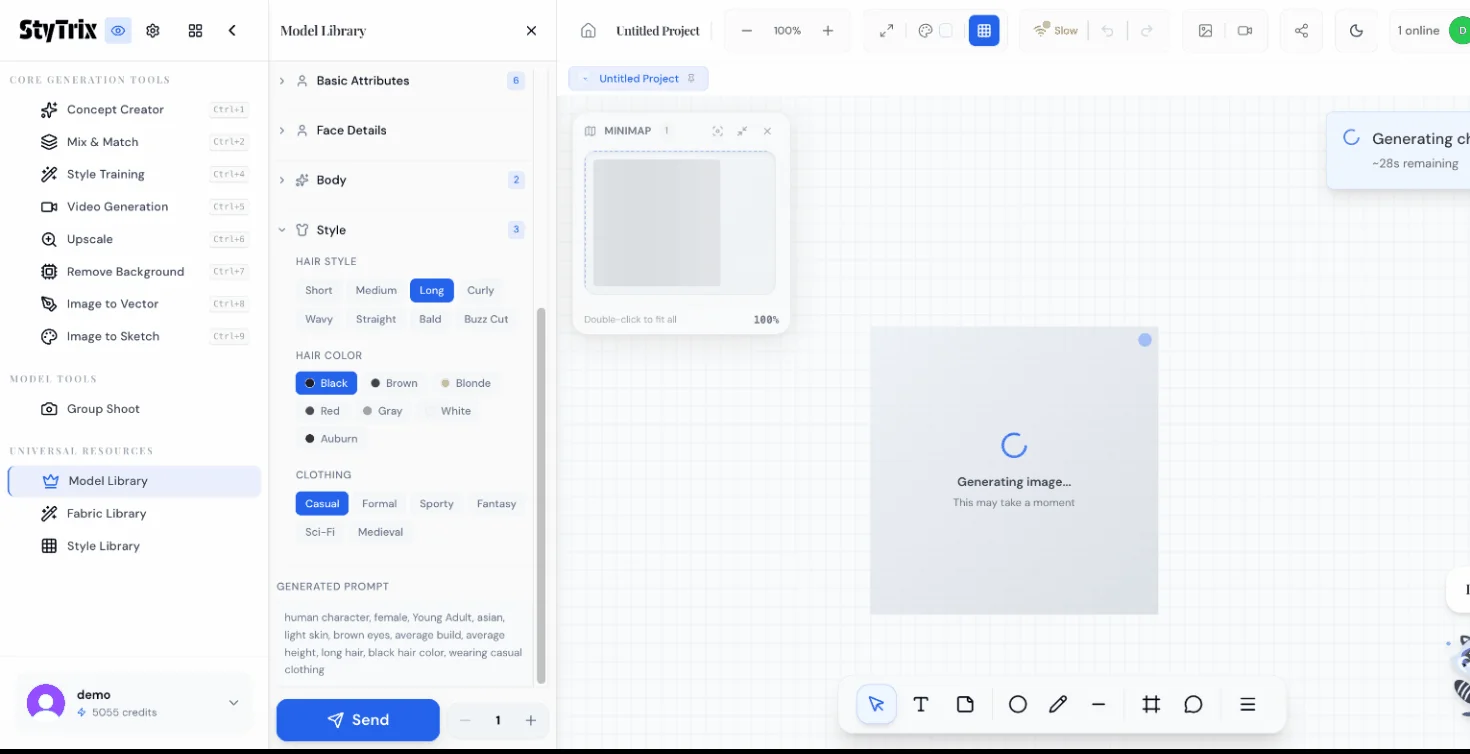
Click the Send button to generate your custom model. The AI will process all your attribute selections and create a photorealistic model image in approximately 20–30 seconds.
The Result
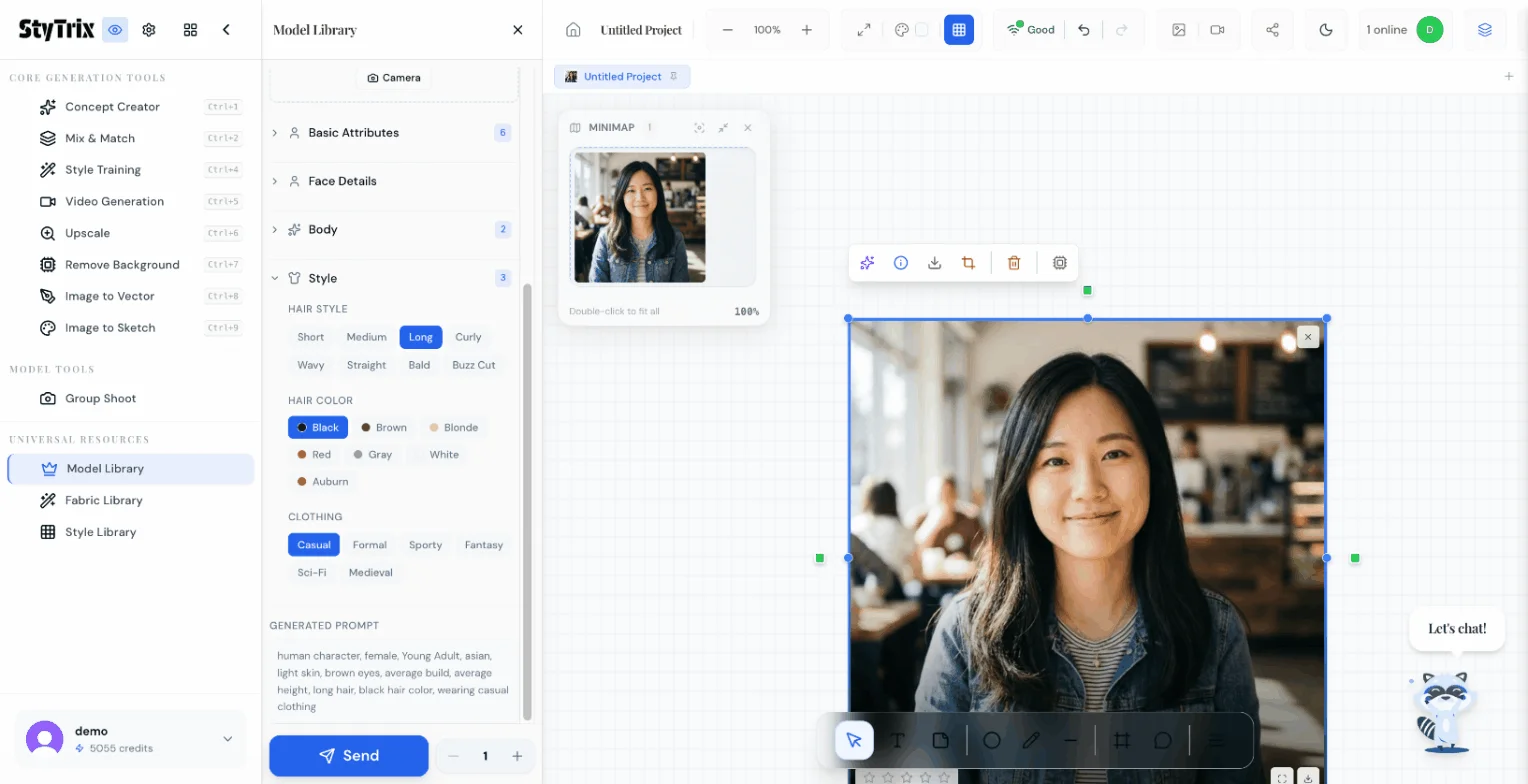
Here's the final output — a photorealistic AI model matching all our specified attributes. The AI has generated:
- A young Asian female with long black hair, exactly as specified
- Natural facial features with light skin tone and brown eyes
- Casual clothing style with a friendly, approachable expression
- High-quality output ready for use in other StyTrix tools
What Can You Do with Your Model?
Once generated, your custom model is saved to My Models and can be used across StyTrix tools:
| Tool | Use Case |
|---|---|
| Concept Creator | Use as a reference to generate the model wearing your designs |
| Mix & Match | Combine your model with garment photos |
| Group Shoot | Create multi-model campaign photos |
| Video Generation | Animate your model into fashion videos |
Advanced Features
Reference Image Upload
Want a model that looks like a specific person? Upload a Reference Image using the Browse, Library, or Camera options. The AI will use the reference as a guide while applying your selected attributes.
Face Details & Body Sections
Beyond Basic Attributes and Style, the Model Library offers two more expandable sections:
- Face Details — Fine-tune facial features for more specific looks
- Body — Adjust build (slim, average, athletic, curvy) and height
My Models Tab
All generated models are automatically saved. Switch to the My Models tab to:
- Browse your model collection
- Reuse models across different projects
- Delete models you no longer need
Pro Tips
- Start simple — Begin with basic attributes and refine from there. You can always regenerate with adjustments
- Use reference images for consistency — If you need the same model across multiple shoots, upload a reference from a previous generation
- Try different character types — Anime and 3D Stylized modes can create unique editorial content
- Save your favorites — Models in My Models persist across projects, so build a library of go-to models
- Combine with other tools — Generate a model here, then use it in Concept Creator or Mix & Match for complete outfit visualization
Ready to create your own AI model? Sign up for StyTrix and build your custom model library in minutes.
Related Tutorials & Guides
- Group Shoot: Same Outfit on Multiple Models — use your custom models in multi-model fashion shoots
- Style Library: Generate On-Brand Fashion Images — pair custom models with styled garments
- StyTrix Model Library Complete Guide — advanced model customization and management
- AI Virtual Try-On for E-Commerce — use AI models for product photography
- AI Model Photo Generator for Brands — complete guide to AI fashion model photos
Turn Your Fashion Ideas Into Reality
Generate stunning fashion designs with AI. No design skills required.
Start Creating

