
Designing a fashion collection starts with fabric. Traditionally, sourcing fabric swatches means visiting showrooms, ordering sample books, and waiting days for deliveries. With StyTrix's Fabric Library, you can generate photorealistic fabric swatches in seconds — specifying exact material, pattern, color, and finish attributes.
In this tutorial, we'll walk through generating a navy linen fabric with a white floral pattern and matte finish as a seamless tile.
What You'll Need
- A StyTrix account (free tier works)
- A clear idea of the fabric you want (material, pattern, colors)
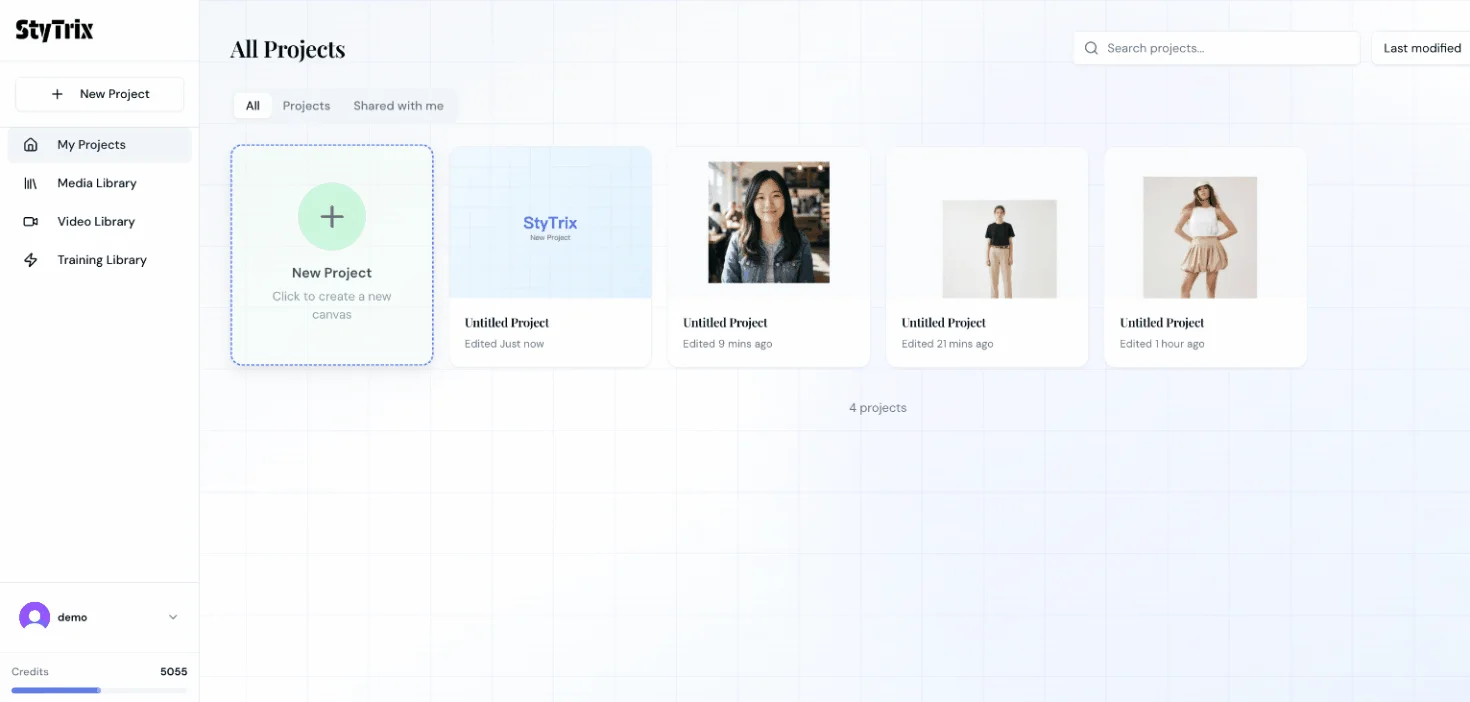
Step 1: Create a New Project
From the Dashboard, click the New Project card to create a fresh canvas.
Step 2: Open the Canvas
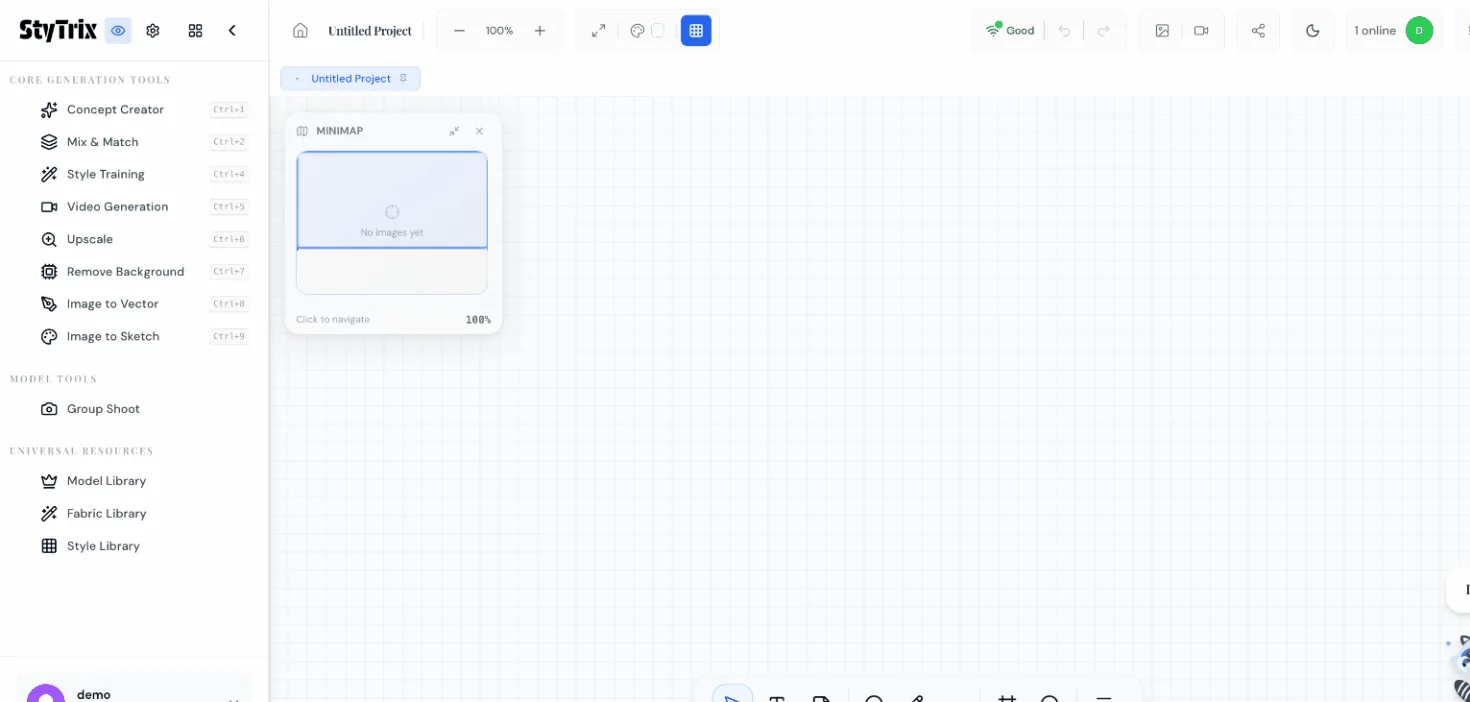
Your new project opens on the StyTrix Canvas — a blank workspace with all AI tools in the left sidebar. You'll find Fabric Library under the Universal Resources section.
Step 3: Open Fabric Library & Set Presentation Style
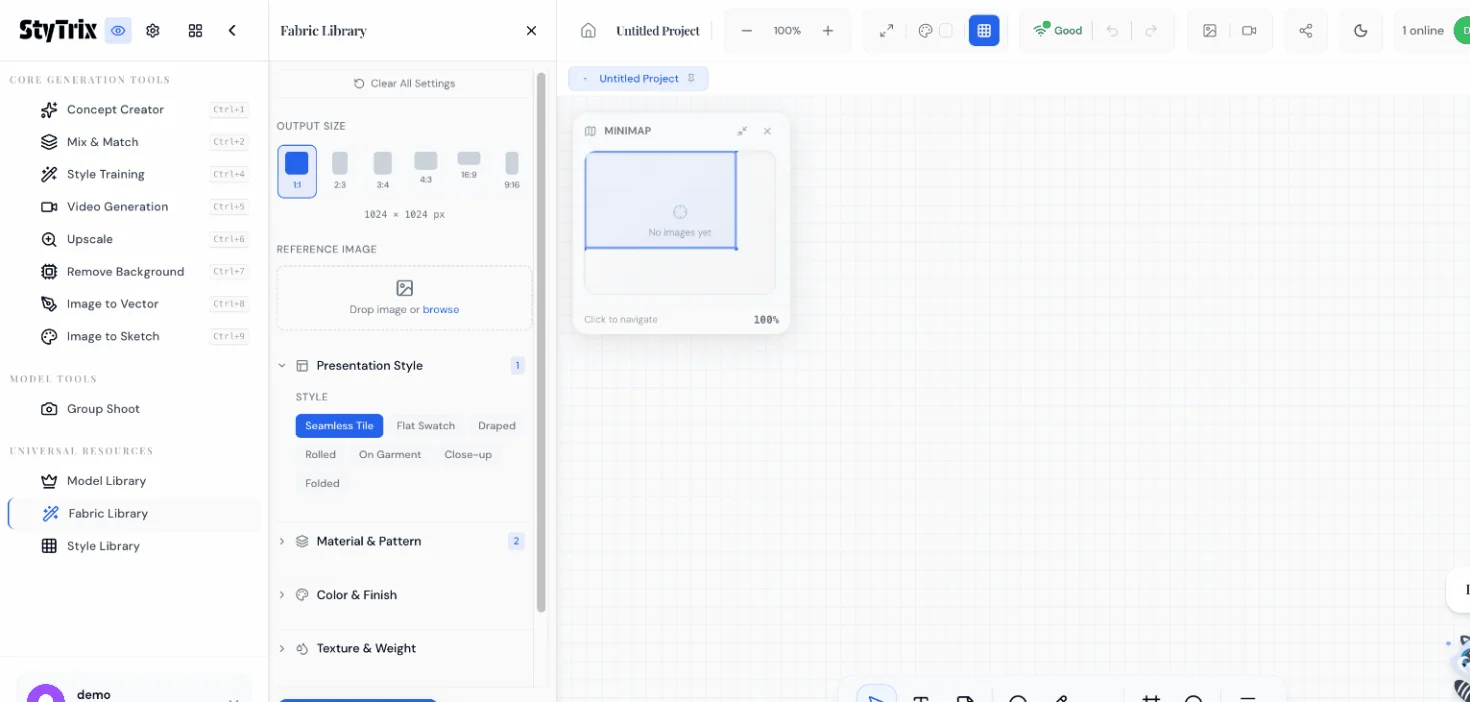
Click Fabric Library in the left sidebar. The panel opens with several configurable sections:
- Output Size — Choose from 1:1, 2:3, 3:4, 4:3, 16:9 aspect ratios
- Presentation Style — How the fabric is displayed: Seamless Tile, Flat Swatch, Draped, Rolled, On Garment, Close-up, or Folded
- Material & Pattern — The core fabric attributes
- Color & Finish — Primary/secondary colors and surface finish
- Texture & Weight — Additional texture properties
For this tutorial, select Seamless Tile under Presentation Style. This generates a tileable texture that can be repeated infinitely — perfect for 3D mockups and pattern visualization.
Step 4: Choose Material & Pattern
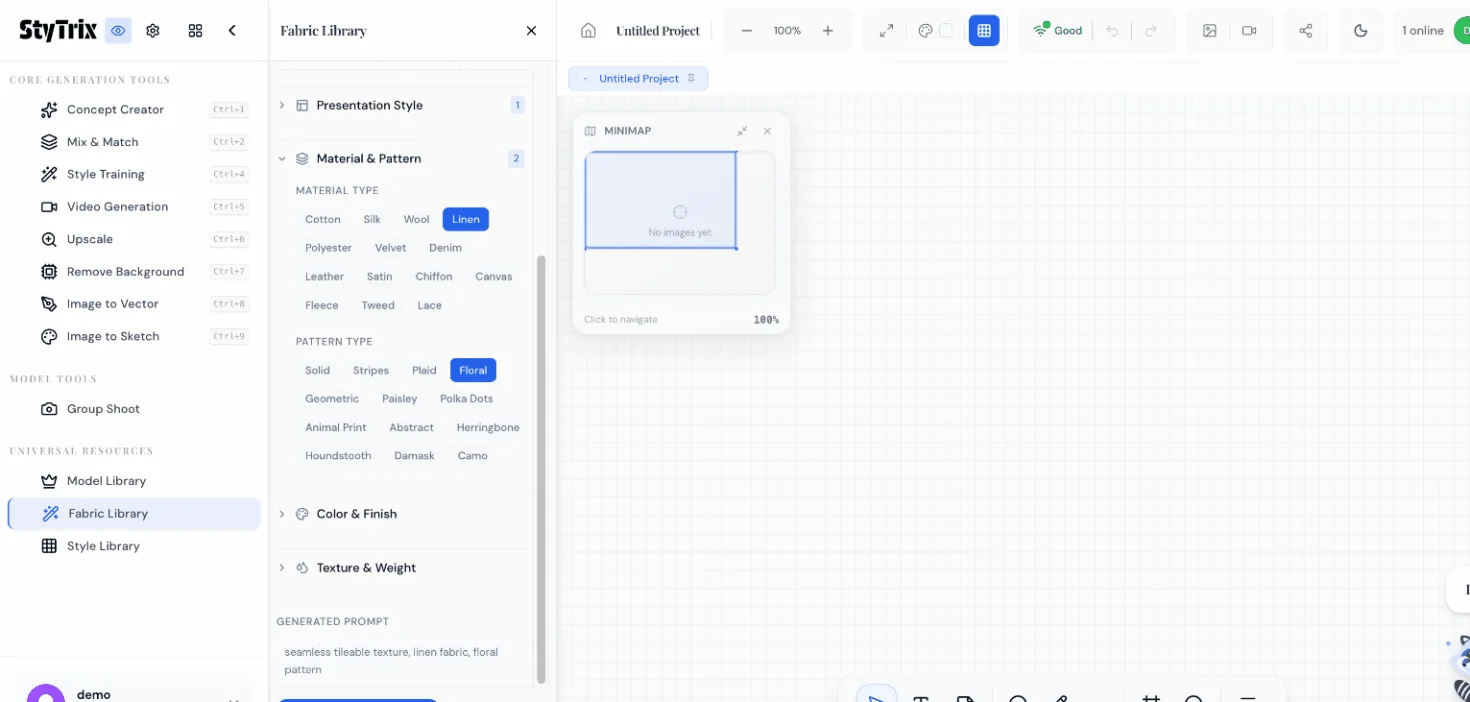
Expand the Material & Pattern section. You'll see two attribute groups:
Material Type: Cotton, Silk, Wood, Linen, Polyester, Velvet, Denim, Leather, Satin, Chiffon, Canvas, Fleece, Tweed, Lace
Pattern Type: Solid, Stripes, Plaid, Floral, Geometric, Paisley, Polka Dots, Animal Print, Abstract, Herringbone, Houndstooth, Damask, Camo
For our example, select Linen as the material and Floral as the pattern. The generated prompt at the bottom updates automatically as you make selections.
Step 5: Set Colors & Finish
Expand the Color & Finish section. Here you'll configure three attributes:
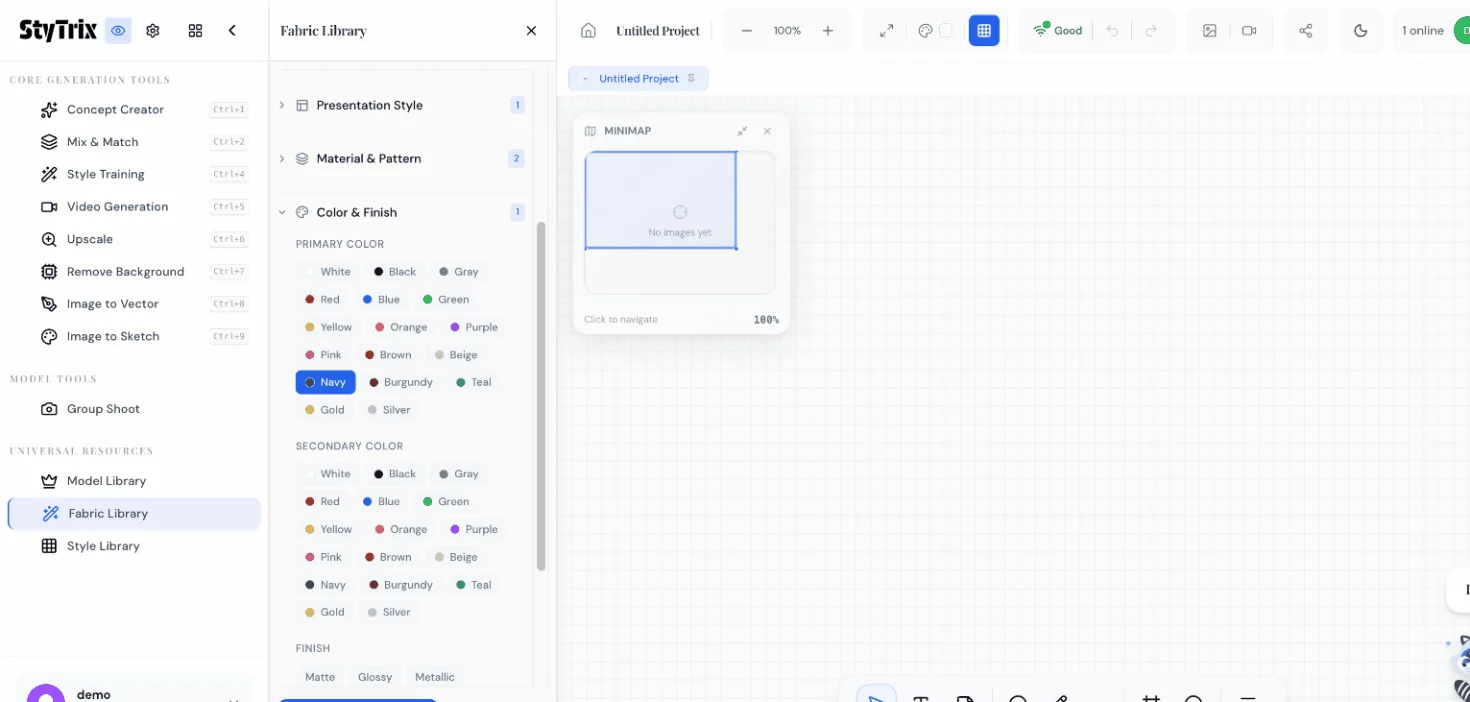
Primary Color
Choose the dominant color for your fabric. We'll select Navy — a rich, deep blue that works beautifully with floral patterns.
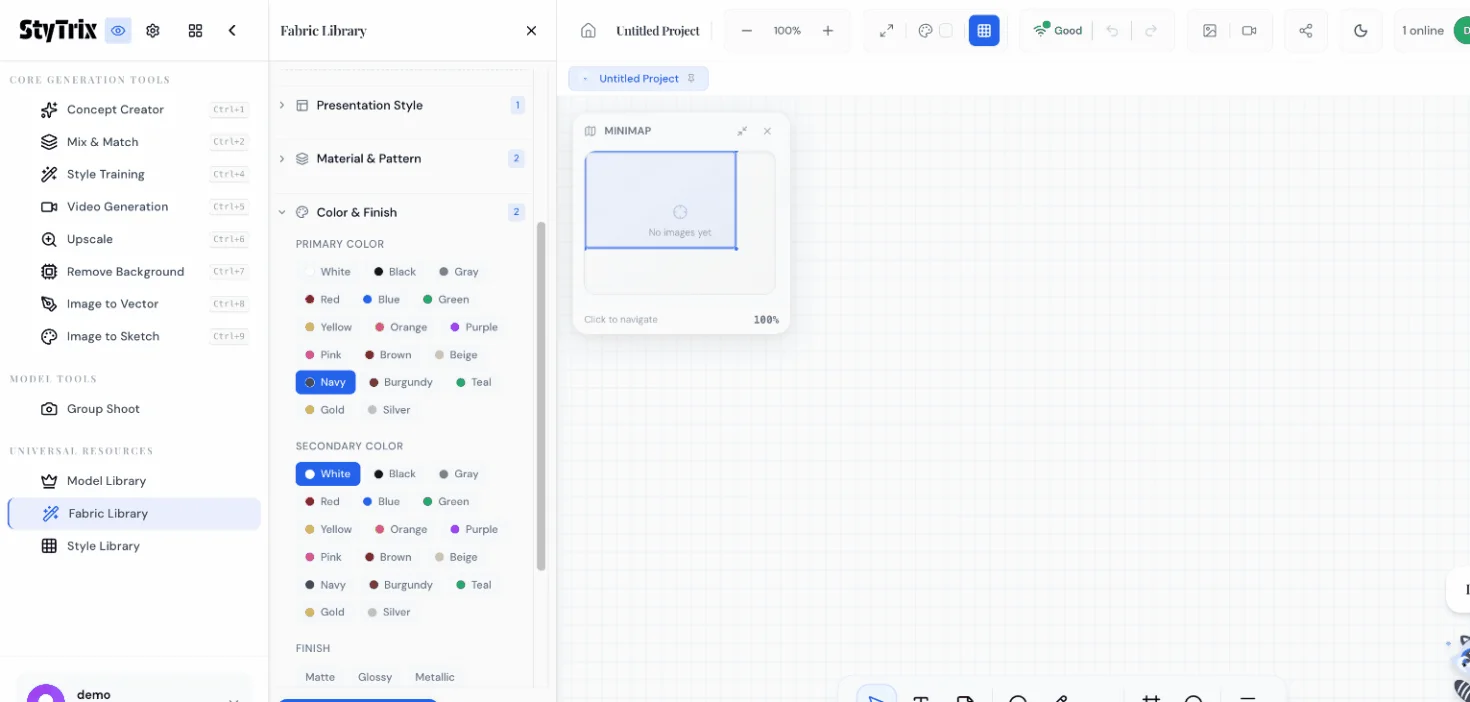
Secondary Color
Choose the accent color. Select White to create a classic navy-and-white floral combination.
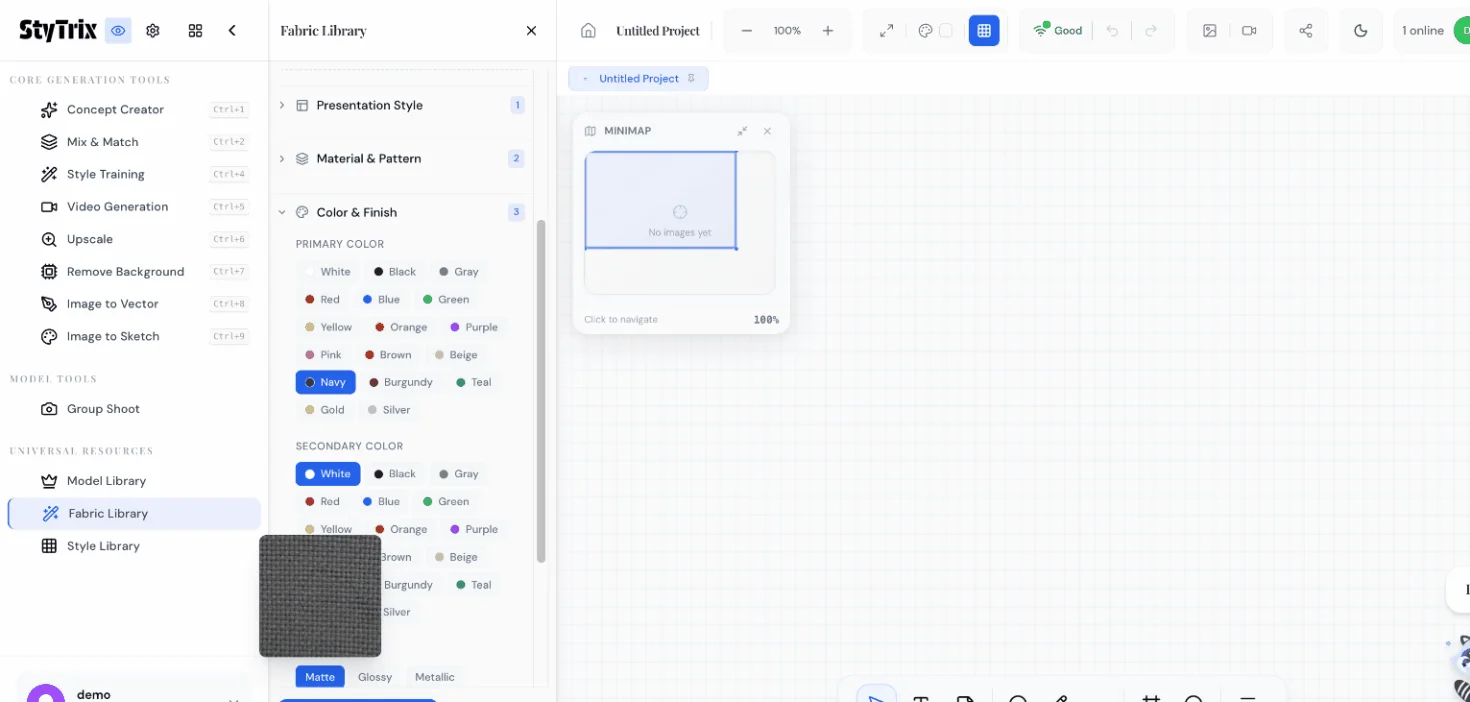
Finish
Choose the surface finish: Matte, Glossy, Metallic, Shimmery, or Iridescent. For natural linen, Matte is the most realistic choice.
Step 6: Review the Generated Prompt
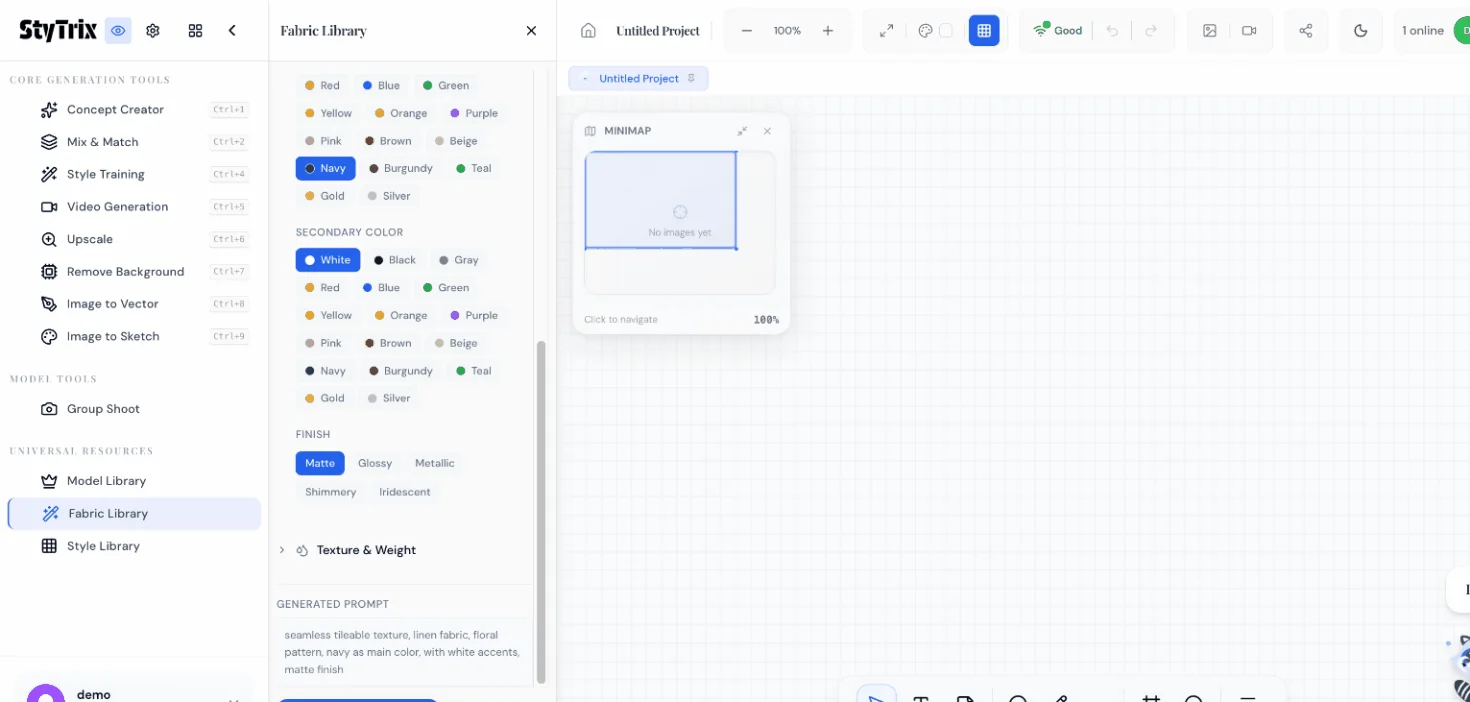
Before generating, review the auto-generated prompt at the bottom of the panel. Based on our selections, it reads:
seamless tileable texture, linen fabric, floral pattern, navy as main color, with white accents, matte finish
You can also expand the Texture & Weight section to add additional attributes like texture grain or fabric weight, but for this tutorial we'll keep it simple.
Step 7: Generate
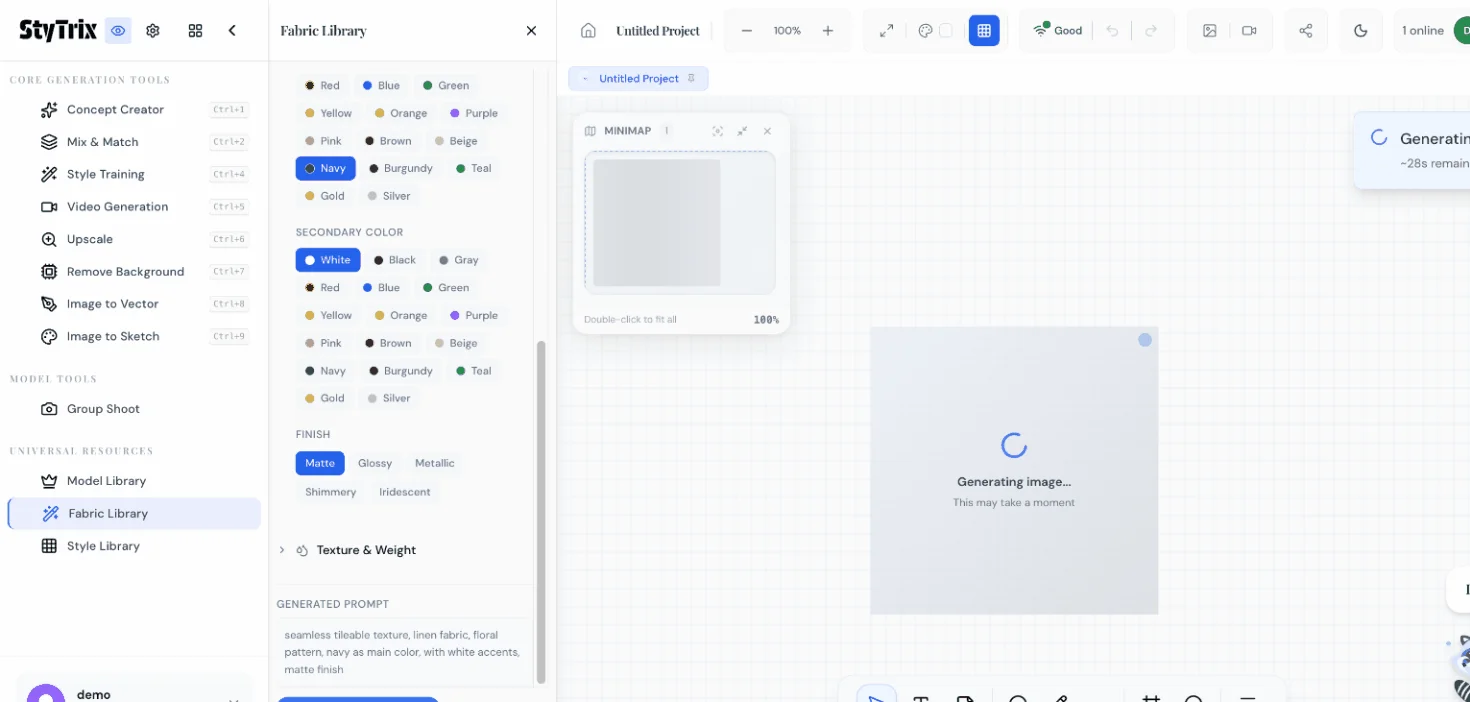
Click the Send button. The AI processes your specifications and generates a photorealistic fabric swatch in approximately 15–20 seconds.
The Result
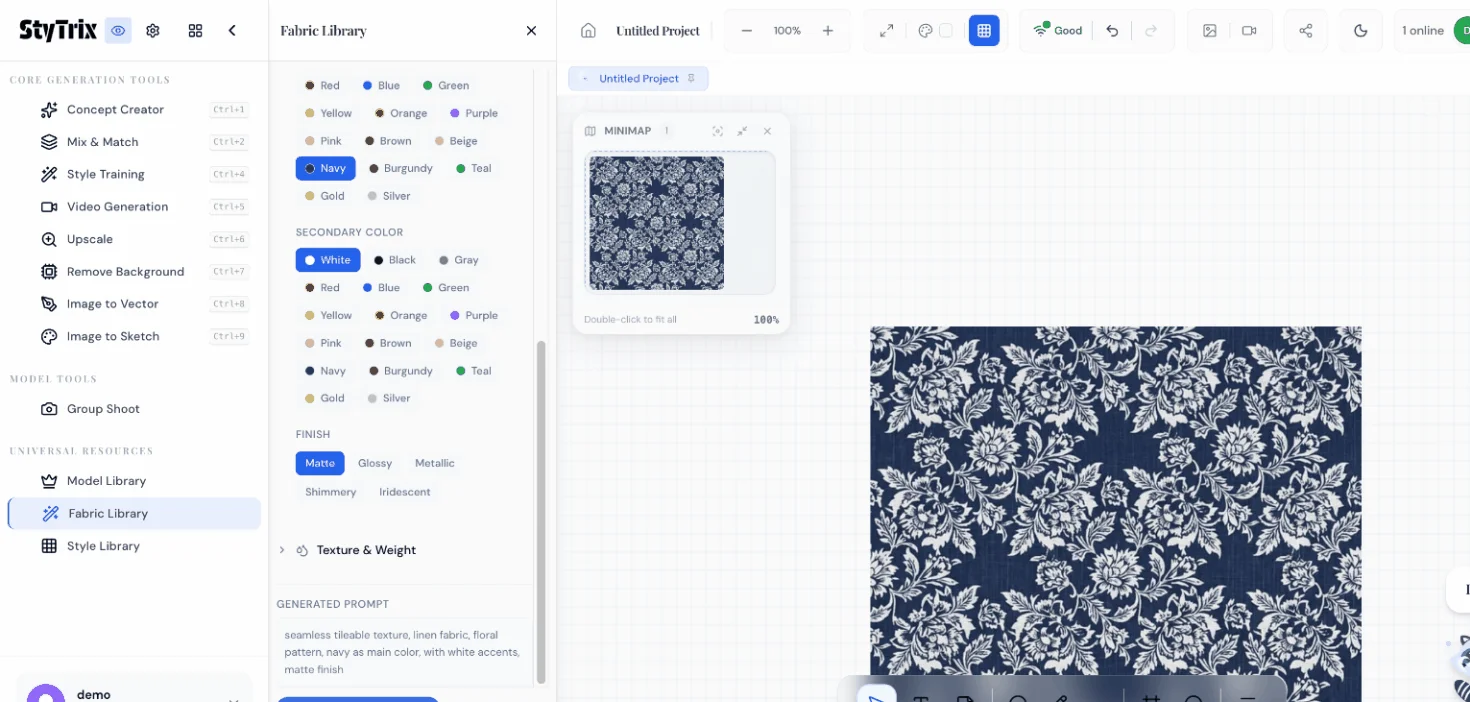
Here's the generated fabric — a beautiful seamless navy linen with white floral damask pattern and matte finish. The AI has created:
- Realistic linen texture with visible fiber weave
- Elegant floral pattern in white on deep navy
- Seamless tiling — the edges match perfectly for infinite repetition
- Matte surface with natural light absorption
Presentation Style Comparison
| Style | Best For |
|---|---|
| Seamless Tile | 3D mockups, repeating patterns, textile printing |
| Flat Swatch | Lookbooks, mood boards, client presentations |
| Draped | Showing how fabric falls and moves |
| Rolled | Fabric store displays, e-commerce |
| On Garment | Visualizing the fabric on actual clothing |
| Close-up | Detail shots for texture and weave analysis |
What's Next?
Once you have your fabric swatch, you can:
- Iterate — Adjust colors, patterns, or materials and regenerate
- Try different presentations — Switch from Seamless Tile to Draped to see how the fabric moves
- Use in Concept Creator — Upload the fabric as a reference for garment generation
- Build a collection — Generate matching fabrics in different colorways
- Export for 3D — Use seamless tiles in CLO3D, Browzwear, or other 3D fashion tools
Pro Tips
- Seamless Tile is ideal for 3D fashion tools — the output tiles perfectly in any direction
- Combine complementary colors — try Navy + Gold, Burgundy + Cream, or Forest Green + Silver for luxurious fabric palettes
- Material affects pattern rendering — the same Floral pattern looks very different on Silk vs. Linen vs. Velvet
- Generate variations by changing just the finish (Matte vs. Glossy vs. Metallic) to see how lighting affects the fabric
- Use Texture & Weight settings for finer control — adjust grain, thread count, and fabric weight
Ready to design your own fabrics? Sign up for StyTrix and generate custom fabric swatches in seconds.
Related Tutorials & Guides
- Style Library: Generate On-Brand Fashion Images — pair your custom fabrics with styled garments
- Mix & Match: Combine Garments into Outfits — see how fabrics look in complete outfit compositions
- StyTrix Fabric Library Complete Guide — deep dive into all material, pattern, and finish options
- AI Fabric Design & Textile Generation Guide — learn about AI-powered textile design
- AI-Powered Textile Innovation — how AI is engineering the fabrics of tomorrow


