

Using the canvas
Every StyTrix tool follows the same loop: open it, give it inputs, press Send, and the result appears live on your canvas.
The canvas is your infinite design board. The left sidebar lists 13 tools grouped into generation tools, model tools, and resource libraries. Every tool opens a panel on the left, and every result lands on the same shared board.
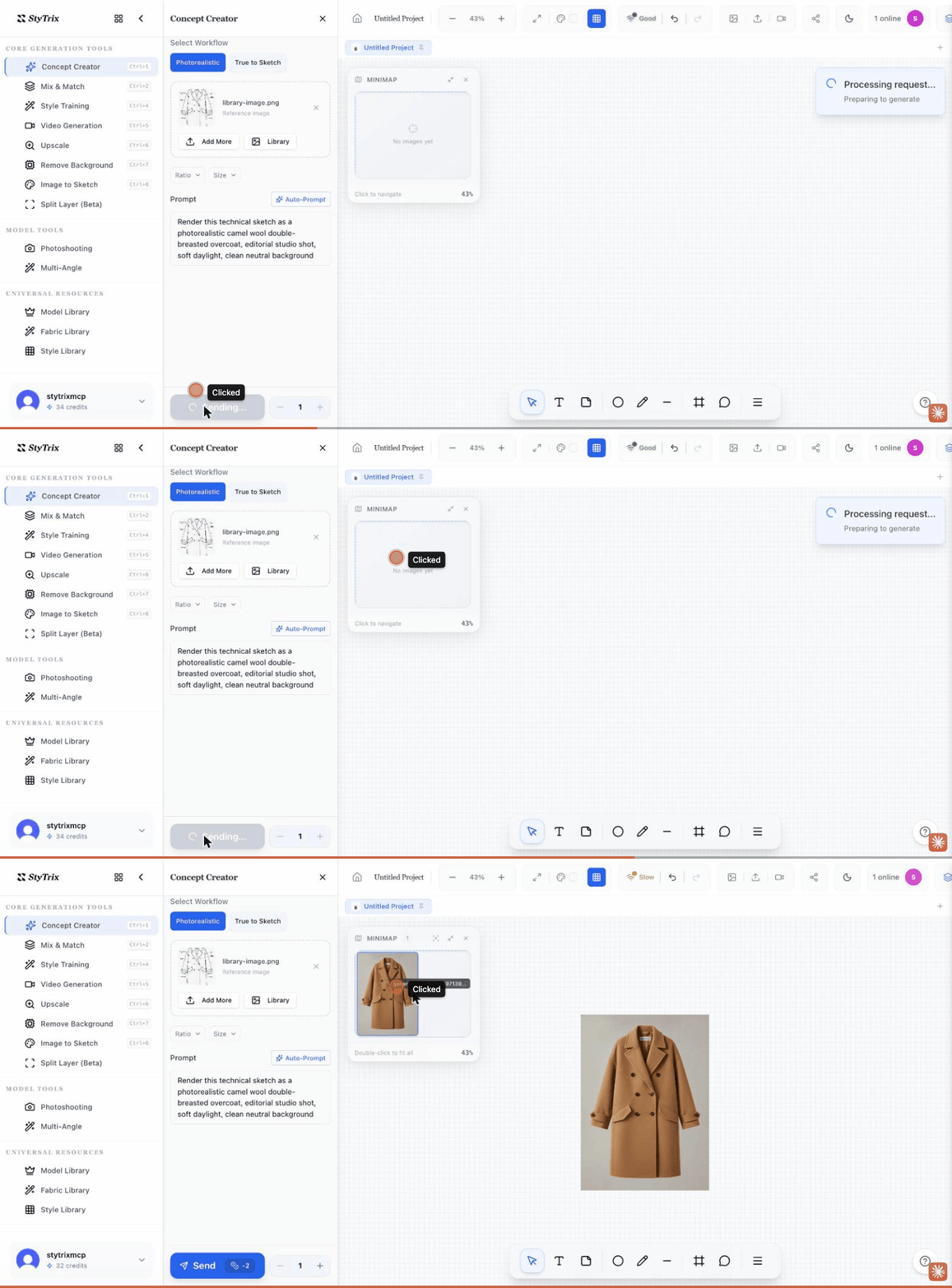
The basic loop
- Open a tool. Click it in the sidebar, or press its shortcut (e.g.
Ctrl/⌘ + 1for Concept Creator). The tool's panel opens on the left. - Give it inputs. Depending on the tool, type a prompt, choose options (style, ratio, size), and/or add reference images.
- Press Send. The button shows the credit cost. A placeholder appears on the canvas and is replaced by the finished result a few seconds later.
Adding reference images
Tools that take an image give you three ways to supply one:
- Browse — upload a file from your computer.
- Library — open the image picker. The Generation tab holds everything you've created on this canvas (including images placed by an AI agent over MCP); the Upload tab holds files you've dragged in. Select one or more, then click Insert.
- Drag from canvas — drop any image already on the board straight into the panel's drop zone.
Credits
Write tools spend credits; the exact amount is shown on the Send button before you run anything (e.g. -2). You're only charged on a successful result. Browsing the canvas, opening panels, and selecting images are free.
Finding your results
Use the Minimap (top-left of the canvas) to see everything at a glance — double-click it to fit all your designs into view. New results are added next to your inputs.