

Model tools
Put garments on models and produce coordinated product views — the photography side of StyTrix.
These tools live under Model Tools in the canvas sidebar. New to the canvas? Read Using the canvas first.
Photoshooting
Stage a full photo shoot: put a garment on a chosen model in a styled scene and lighting. Cost: about 1 credit per image.
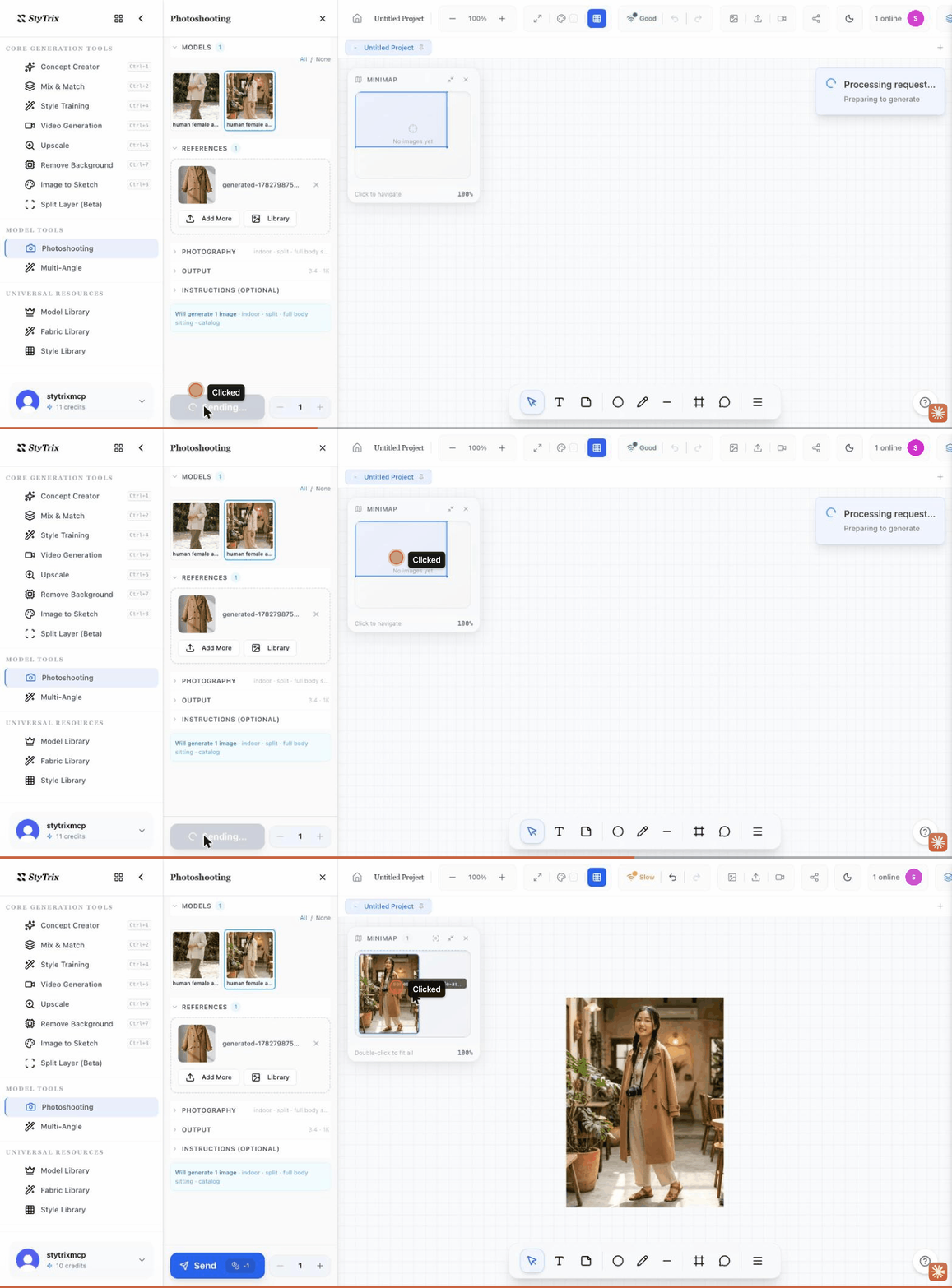
- Open Photoshooting.
- Under Models, select a model (models you generate with the Model Library appear here).
- Under References, add the garment or outfit via Library or Browse and Insert it.
- Open Photography to set the scene, framing, and shot type (indoor, full body, catalog, etc.).
- Press Send to render the shoot.
Multi-Angle
Generate coordinated views of one product — the standard front + side + back kit, plus 3/4, top-down, and detail. Cost: about 5 credits.
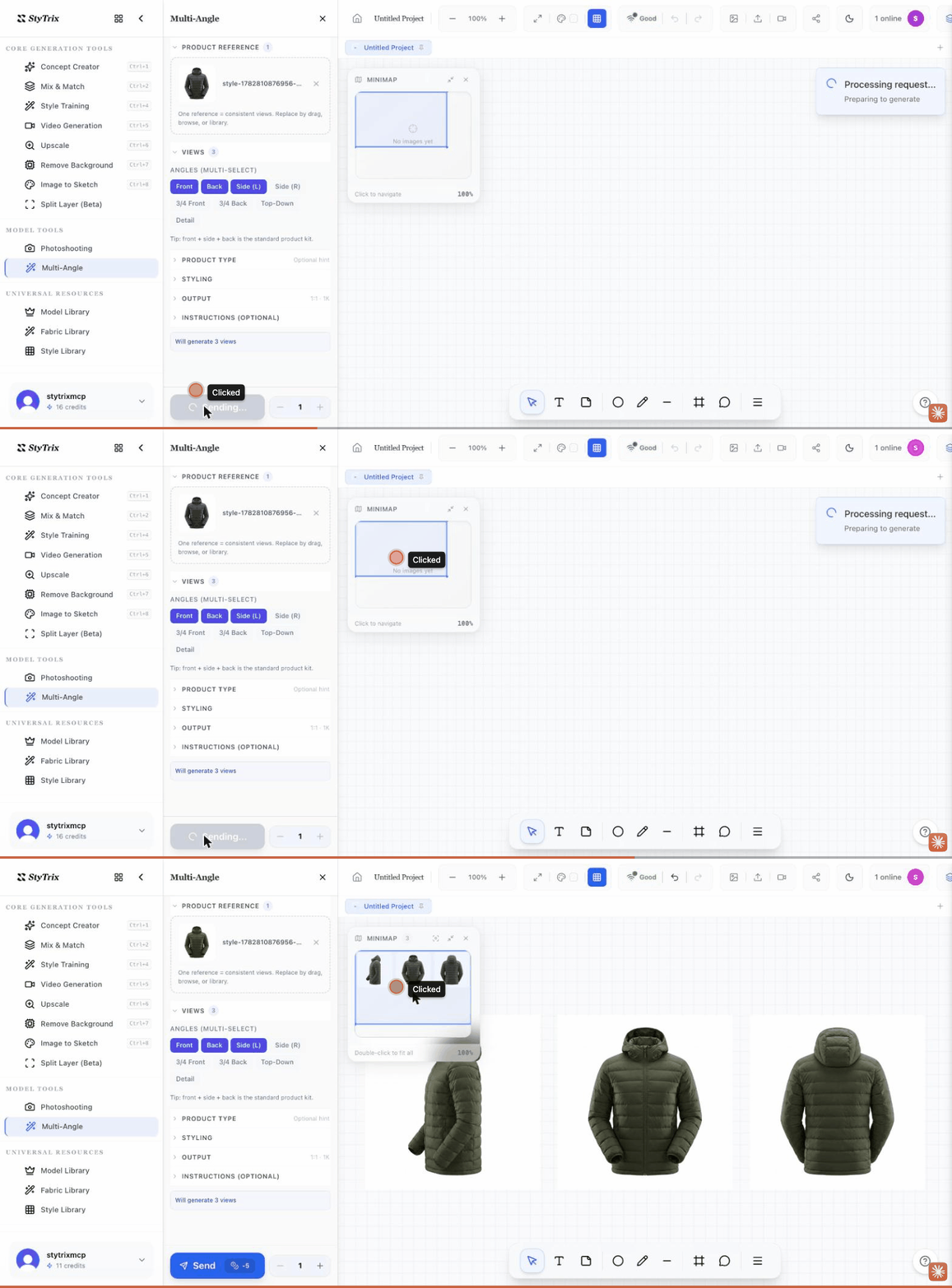
- Open Multi-Angle and add a Product Reference via Library or Browse.
- Under Views, multi-select the angles you want — Front, Side, Back is the standard product kit; Side (R), 3/4, Top-Down, and Detail are also available.
- Optionally set Product Type, Styling, and Output.
- Press Send. Each view is generated and placed side-by-side on your canvas.